Event Manager: Manage Your Team
Last updated
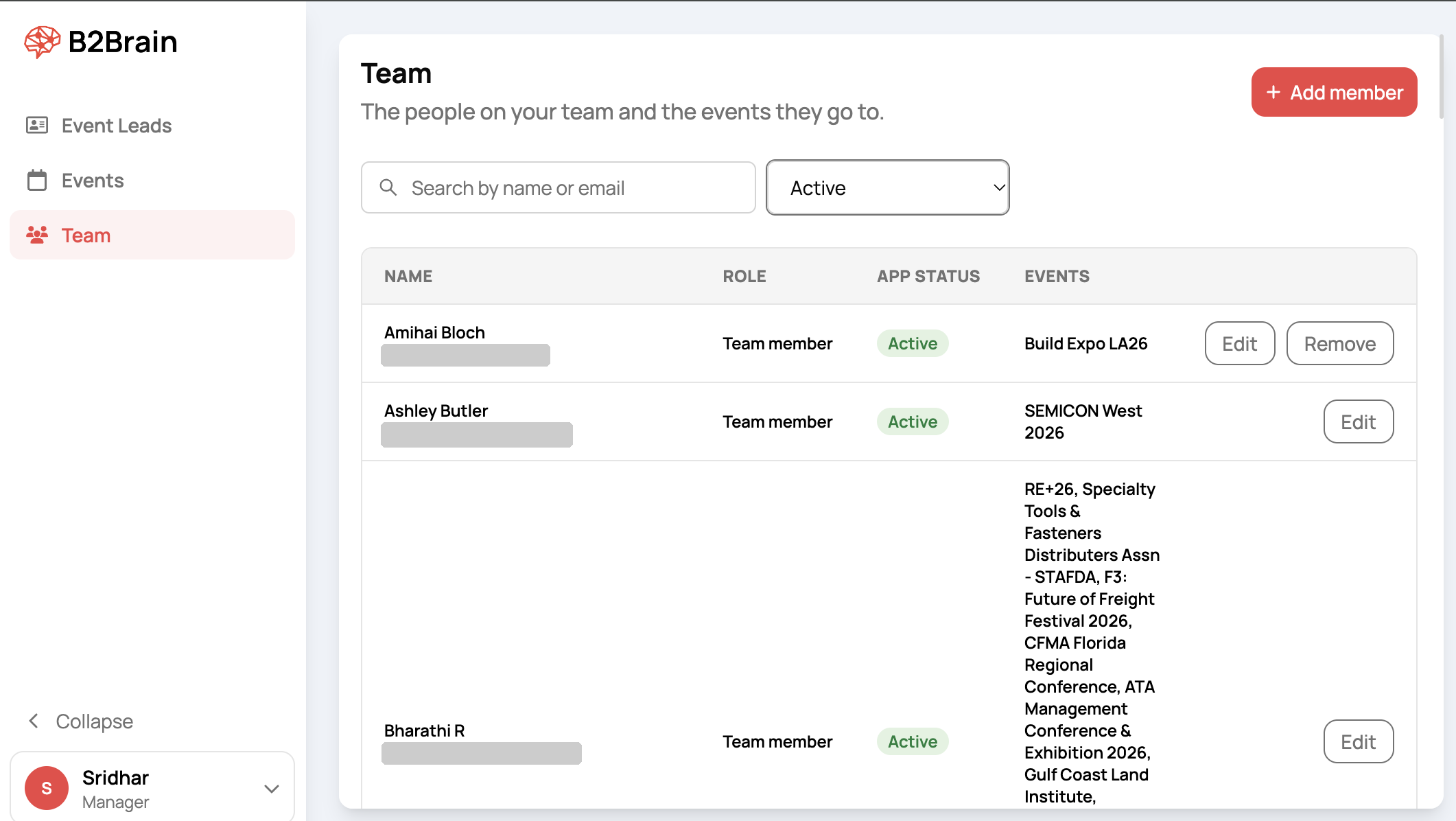
The Team page lists everyone who can capture leads for your company. Each row shows the person's name and work email, their role, their app status and the events they are assigned to. Search by name or email, or filter by app status.
Invite a team member
- On the Team page, click + Add member.
- Enter the person's work email. This is required, because the person signs in to the app with it.
- Enter their job title, such as Account Rep. The role is set to Team member.
- Optional: click one or more events to assign them now. Selected events show an x to remove them.
- Click Add and send invite.
B2Brain emails the person an invite. Their assigned events are ready in the app as soon as they sign in.
Use work emails, not personal ones. A personal email address stays with the person if they leave your company. Use the company domain so you keep control of who can capture leads.
Edit a team member
Click Edit on a person's row. You can change their job title. The work email is locked after the person first signs in. The dialog also lists each event the person is assigned to, with the number of leads they captured there. To change who goes to an event, open that event's page.

Remove a team member
Click Remove on a person's row to take them off your team. The Remove button appears only on some rows.