
B2Brain - Setting Up and Getting Started
A step-by-step guide to using the mobile app and the web dashboard
Sign in to the Mobile App
You would have received an email invite from a colleague or from someone at B2Brain – that invite will contain a link that you need to open in the mobile browser
For a quick overview video, check this https://youtube.com/shorts/zk1ZSYt7tCs
Click “Sign in” and sign in with one of the options available
(Note: If you don’t have such an invite, go to https://www.b2brain.com/ and set up a trial to start following the steps. The option to set up trial is also available at the end of this page.)
If you don’t fancy reading up a doc, watch this video on Tips to make the most of B2Brain at shows – https://youtu.be/Qo9OM91i2-E

Add To Home Screen
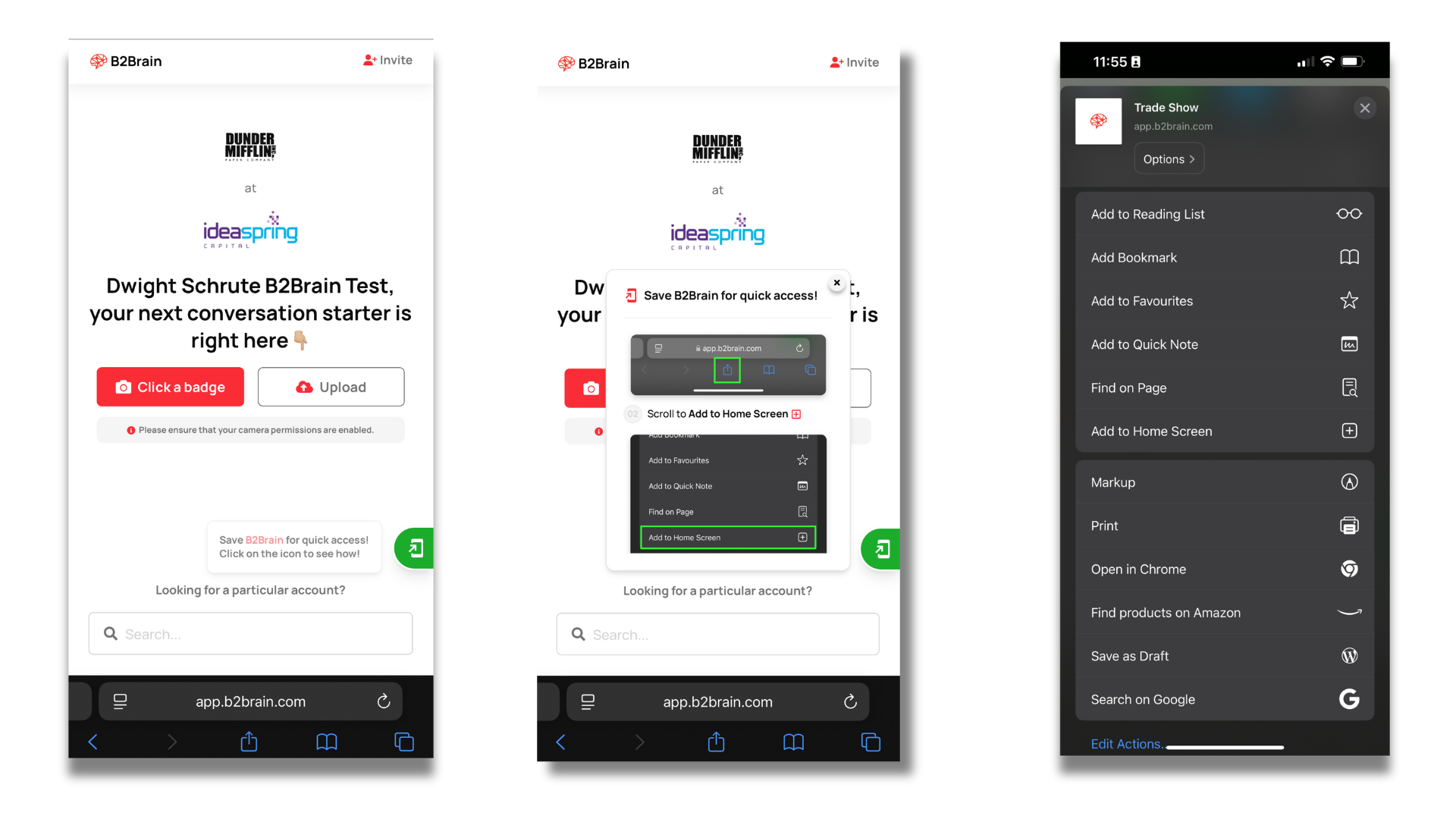
Once you have logged in, look for the option to Add this to your mobile Home Screen. To do that, click the “green” tab and follow instructions depending on your phone browser.
For Safari on iOS, click the “Share” icon in the center-bottom that will bring up the list of options – select the “Add to Home Screen” option from that.
For Chrome on iOS or Android, click the “three dots” on top-right of the browser, and select “Add Shortcut”

The App is ready for you on your Home Screen – ALWAYS access the app by clicking this icon only.
1. Easy to remember.
2. You don’t have to “sign in” again.
3. All new features and enhancements are accessible automatically, without you having to “update” the app.
Scan a Badge/Business Card

Open the app. Tap either “Click a badge” or “Upload” (if you already have a picture of one taken).
Remember to take a complete picture of a badge – NOT just its QR Code.
Once you take the picture, click “Use Photo” – the Account and Person will be identified by the app.
Now you can are ready to add Notes.
Add Voice and Text Notes

1. Click the “mic” button and start recording your notes. The notes typically indicate important points from the conversation you just had – including qualification criteria, identified next steps, other stakeholders involved, plans etc.
2. The most effective “Voice” notes are between 10-15 seconds long!!
3. You can record as many voice notes you want of any conversation, each note being up to 20 seconds long.
4. Once you record them, they get transcribed, and available for you to edit. This helps clean up any typos in Names, Acronyms, Numbers etc before you save and sync these to your CRM.
Save Note / Sync to CRM

1. Once you clean up the note, Save to CRM or just Save Note.
2. If you have not yet connected a CRM, you will get an option to connect CRM – we support Salesforce and Hubspot right now, and will add more later.
Note: This “Save to CRM” is different from when you signed into the app (eg, you might have signed into Hubspot while signing into the App, and you will still have to give permission to Sync these notes into your Hubspot).
3. If you are comfortable typing the notes, you can do so too, and Save/sync.
Schedule a Meeting

This is one of the coolest use cases you can accomplish with your Voice + AI + B2Brain!
Picture this – you have had a great conversation with one of the event attendees, and decide to meet up on a specific date+time the following week, for a detailed topical discussion to hash out the plans.
Now, you would love to have the next meeting set up on the visitor’s calendar before they vanish into the event crowds, don’t you?
The best part – you can literally “instruct” the app to create the invite just from your voice notes.
See this in action: https://youtube.com/shorts/RCZU20ejHKY
Here’s how these notes can look like:
“Met with Greg, great conversation, he is keen to know about pipeline review capability. Wants a deep dive fifth september at noon”
“Discussion with Naomi, she needs product walkthrough next Thursday 3pm”
1. When the note is transcribed and Saved, the app analyses the note, and generates a specific call to action for the scheduled date+time.
2. Click that CTA button to open up a Calendar invite where you will see the Topic, the Date, the Time (default is 30min slots) and recipients – this will include you.
3. You’ll see “Generate QR” option – click that to generate a QR Code – show it to the visitor and ask them to scan it.
4. Once they scan it, it’ll create an invite in their calendar, and once they Save it, it’ll be added to your calendar.
Notes:
1. If you need additional people to receive the invite, you can add them in recipients list, before generating the QR code.
2. If the visitor is unable to scan the QR, you can copy the link and send them via email/whatsapp/any other messaging app.
Accessing your Event Leads

As you and your team scan people at the show, add notes and repeat the process, these leads are getting enriched with contact information and show up in the B2Brain dashboard. You will receive a periodic notification with the enriched leads and can access them here https://app.b2brain.com/dashboard/events/data/ with the same credentials you used.
Note that the dashboard is best viewed in your computer and not on the mobile.

Your trial is set up!

Signed in?
Click this sample badge to dive into the app: